Divi industrial
DIVI Theme Options Documentation

How to Work With DCT Options
DCT Options is a custom admin page to all of the theme's extensive configuration options. It allows users to change theme settings without modifying theme files or touching any code. To view the panel, navigate to the Theme Options in the left-hand menu. Here you have the ability to alter many core aspects that make up how your theme looks and behaves.
We are Providing Some Advance Features Divi Theme options :
- General
- Preloader
- Mobile Menu
- Blog
- Back To Top
- 404 Page
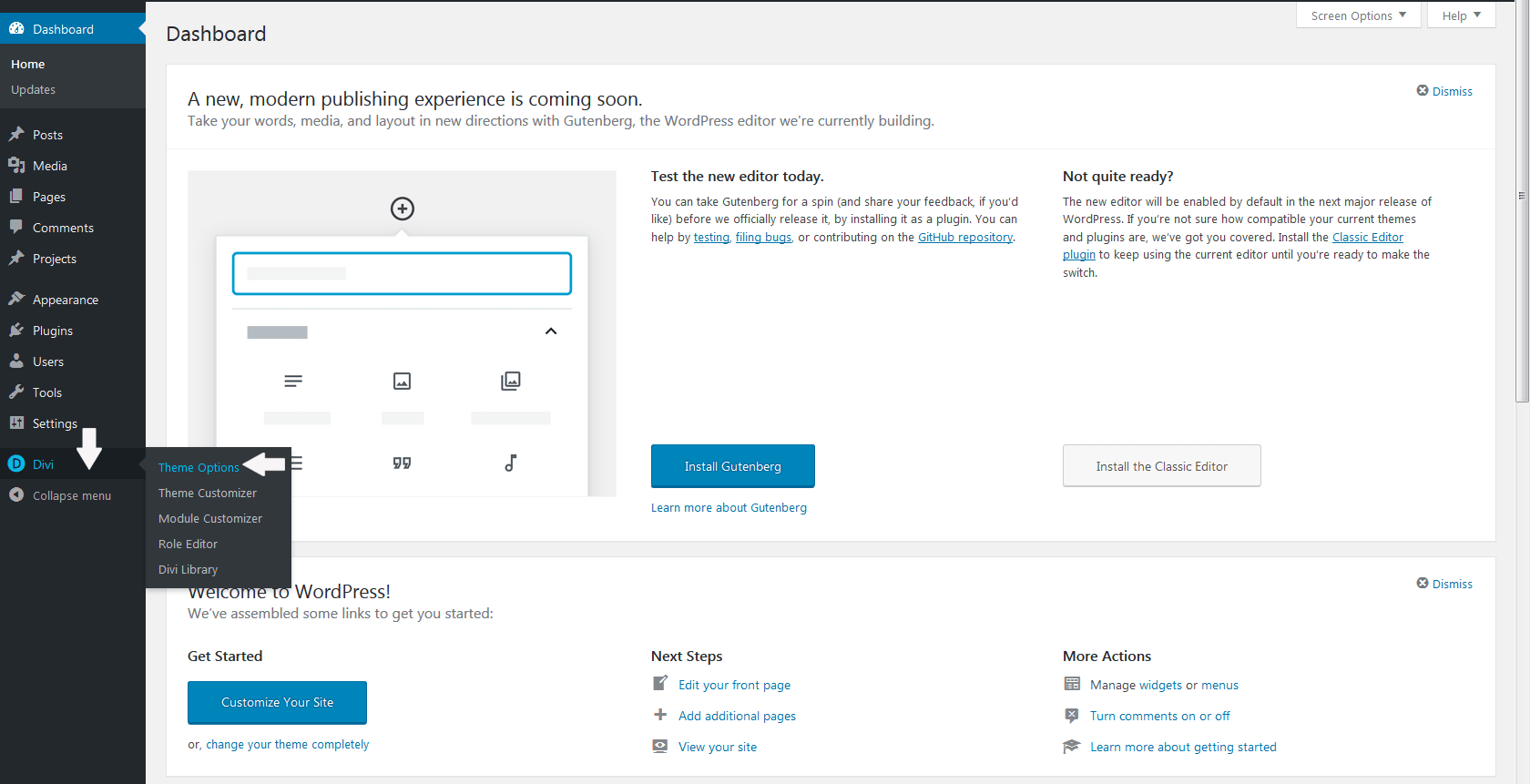
Step 1: Go to Dashboard Divi > Theme Options
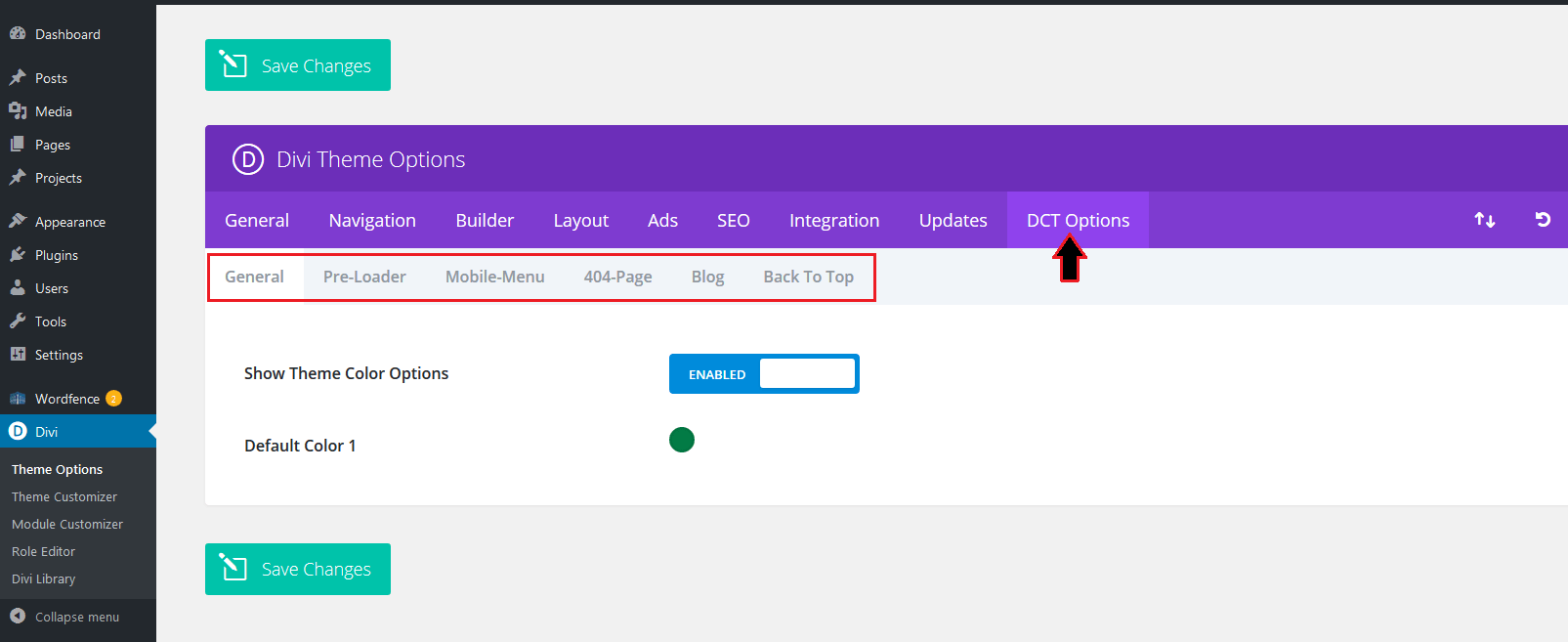
Step 2: Go to Dashboard Divi > Theme Options > then click to DCT Options
Watch More Divi industrial child Theme :
1) General
The DCT theme option allow you to select the settings of General and You can Chnage change the Global Theme color options
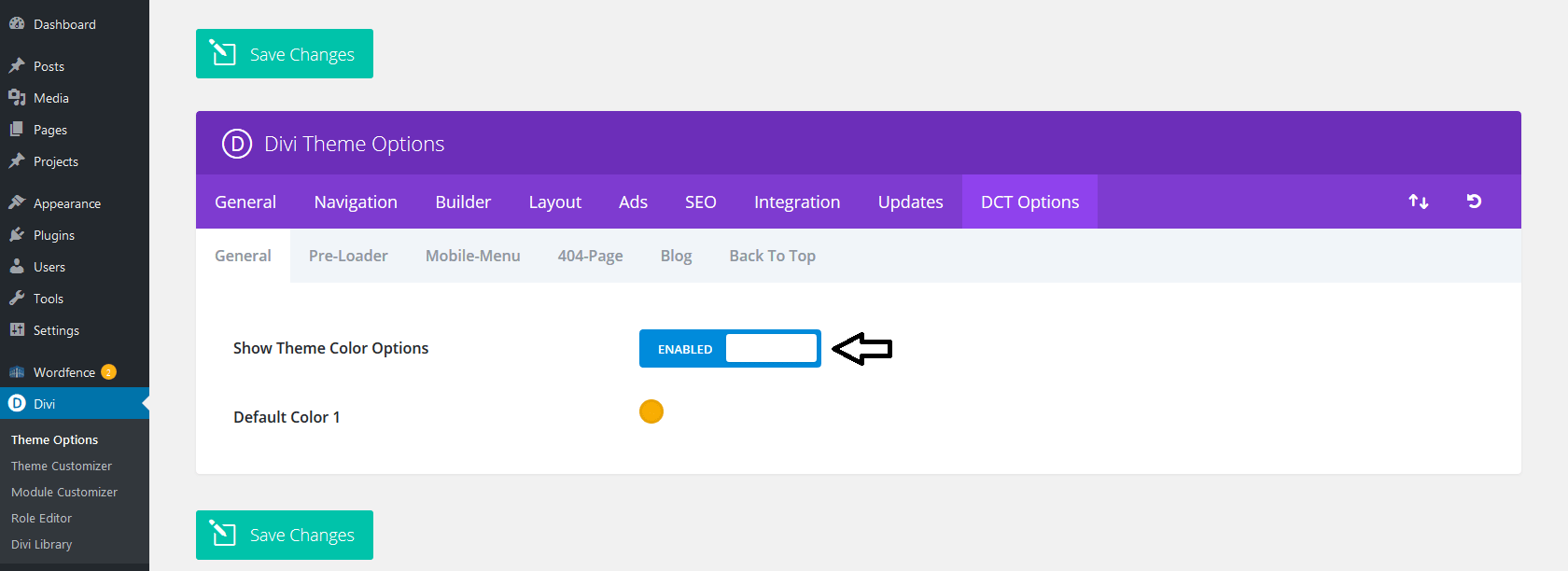
- Show Theme Color Options
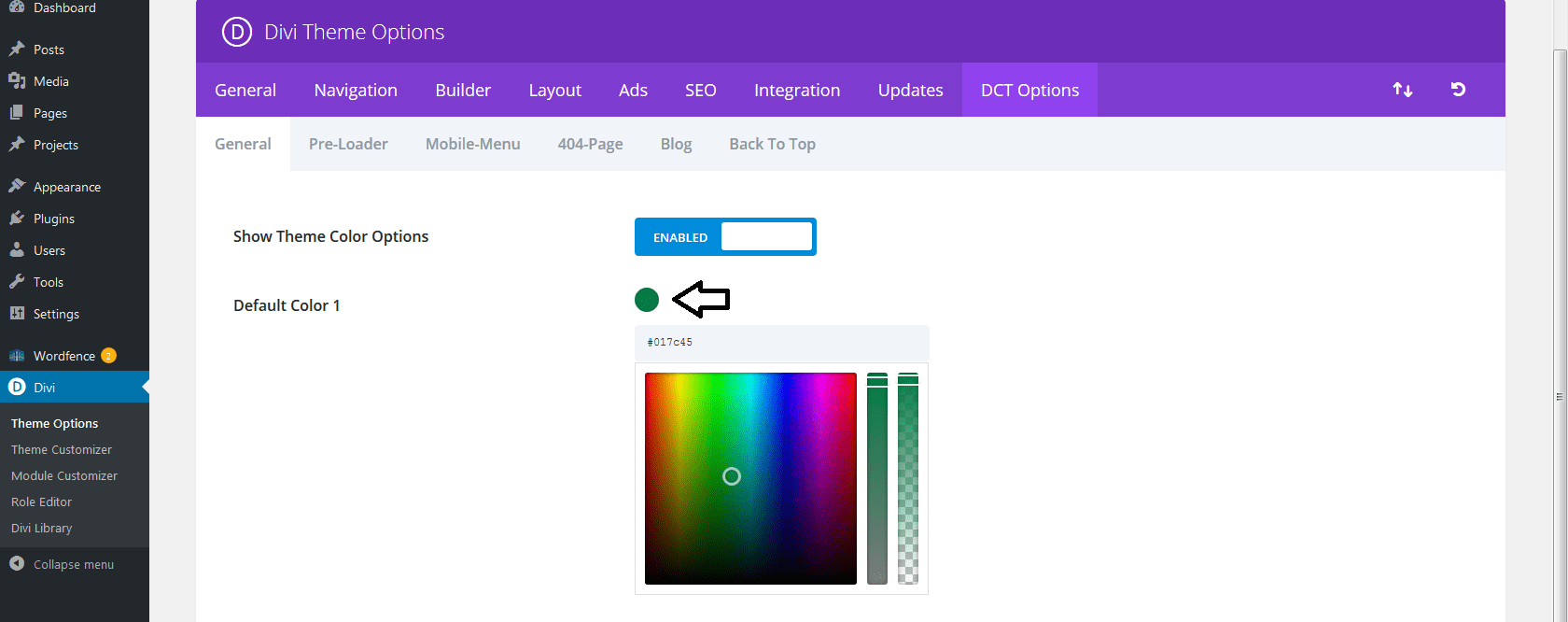
- Default Color 1
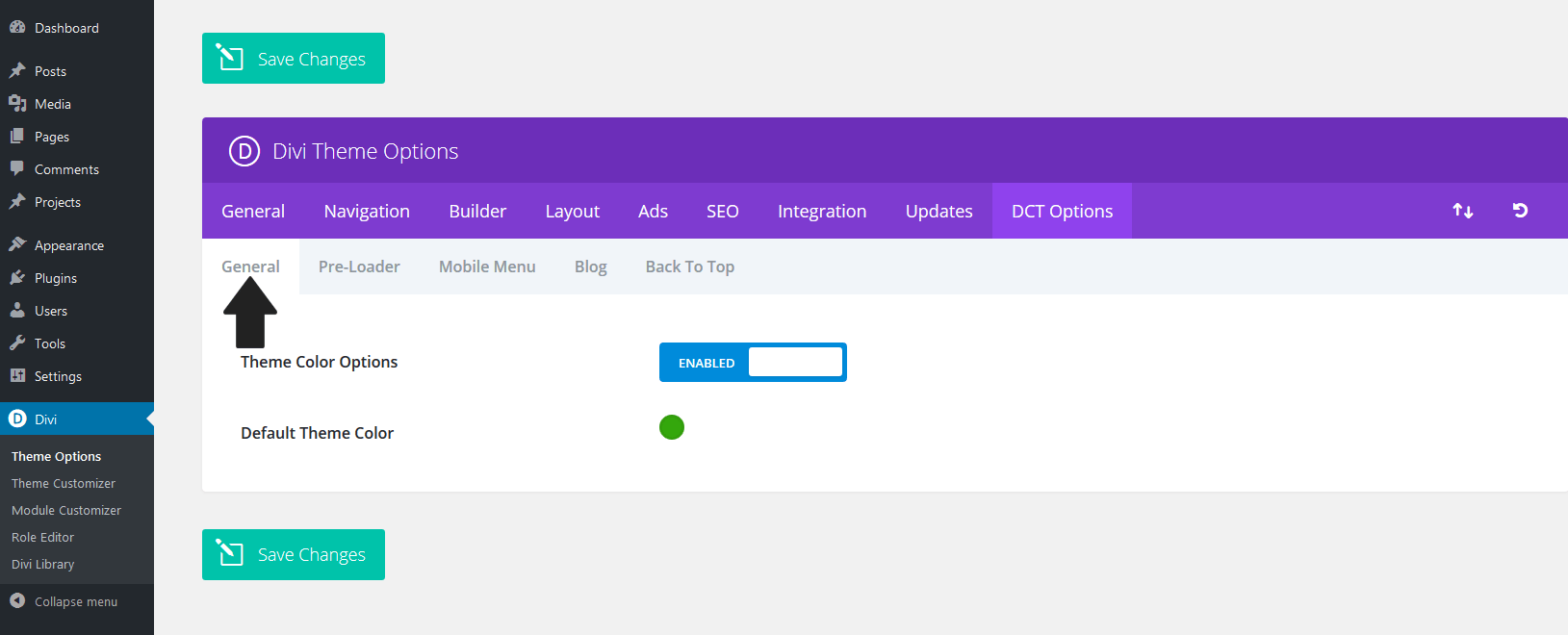
To Disabled/Enabled Theme Color Options Go to Dashboard Divi > Theme Options > General > Show Theme Color Options
To Change Default Theme Color Go to Dashboard Divi > Theme Options > DCT Options > General > Default Color 1
Watch More General option :
2) Preloader
To Change Or Disabled/Enabled Preloader,prel-loader background color,pre-loader color go to Theme Options > DCT Options > Pre-loader
In Preloader Option included :
- Preloader
- Preloader Background Color
- Preloader Color
- Pre-Loader Time Out (In Sec)
To Disabled/Enabled Preloader Go to Dashboard Divi > Theme Options > DCT Options > Pre-Loader > Preloader
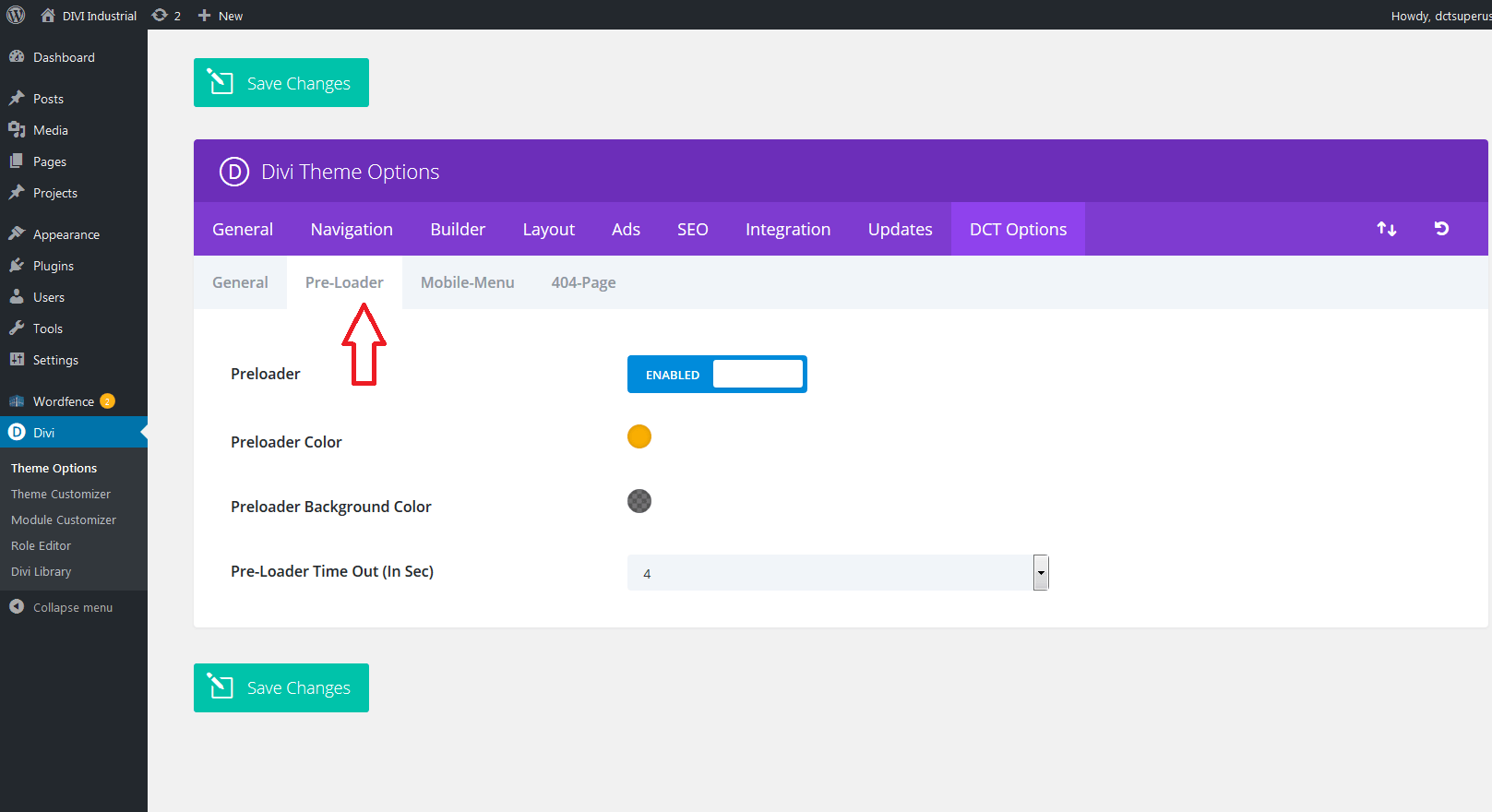
To Change Preloader Background Color Go to Dashboard Divi > Theme Options > DCT Options > Preloader > Preloader Background Color

To Change Preloader Color Go to Dashboard Divi > Theme Options > DCT Options > Preloader > Preloader Color
To Change Preloader Transition Time Out (In Sec) Go to Dashboard Divi > Theme Options > DCT Options > Pre-Loader > Pre-Loader Time Out (In Sec)
Watch More Preloader option :
3) Mobile Menu
To Change Custom style or Disabled/Enabled Mobile Menu Go to Dashboard Divi > Theme Options > DCT Options > Mobile Menu
In Mobile Menu Option included :
- Custom Mobile Menu
- Mobile Menu Close On Outsite Click
- Mobile Menu Collapse Nested Sub Menu
- Mobile Menu Background Color
- Sticky Mobile Menu
- Sticky Mobile Menu Background Color
- Mobile Menu Text Color
- Mobile Menu Active Link Text Color
- Mobile Menu Bar Color
- Mobile Menu Close Bar Color
To Change Custom Mobile Menu Go to Dashboard Divi > Theme Options > DCT Options > Custom Mobile Menu
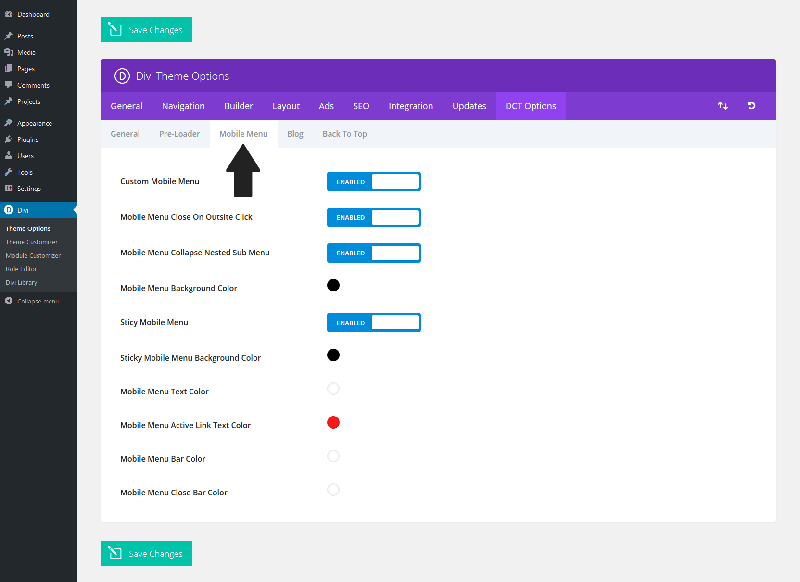
To Disabled/Enabled Custom Mobile Menu Color Go to Dashboard Divi > Theme Options > DCT Options > Mobile Menu > Custom Mobile Menu

To Change Mobile Menu Background Color Go to Dashboard Divi > Theme Options > DCT Options > Mobile Menu > Mobile Menu Background Color
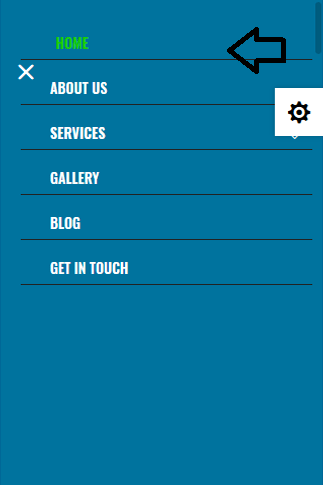
To Change Mobile Menu Bar Color Go to Dashboard Divi > Theme Options > DCT Options > Mobile Menu > Mobile Menu Bar Color

To Disabled/Enabled Mobile Menu Collapse Nested Sub Menu Go to Dashboard Divi > Theme Options > DCT Options > Mobile Menu > Mobile Menu Collapse Nested Sub Menu
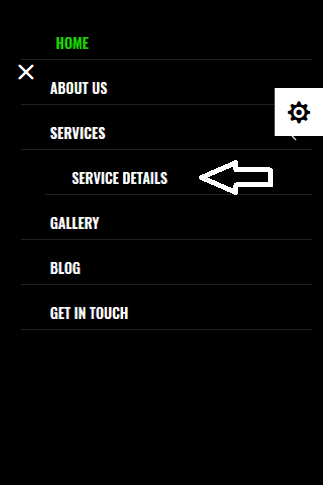
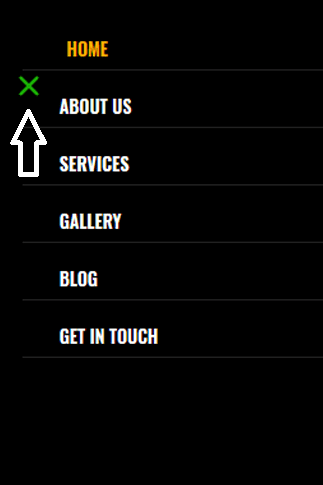
To Change Mobile Menu Close Bar Color Go to Dashboard Divi > Theme Options > DCT Options > Mobile Menu > Mobile Menu Close Bar Color
To Change Mobile Menu Active Link Text Color Go to Dashboard Divi > Theme Options > DCT Options > Mobile Menu > Mobile Menu Active Link Text Color
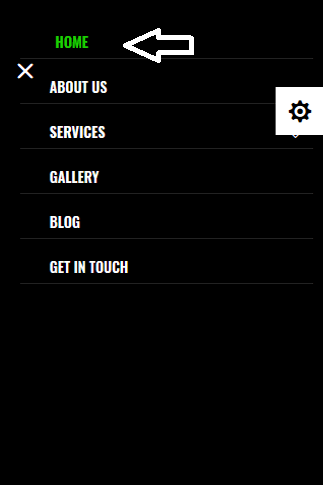
To Change Mobile Menu Text Color Go to Dashboard Divi > Theme Options > DCT Options > Mobile Menu > Mobile Menu Text Color
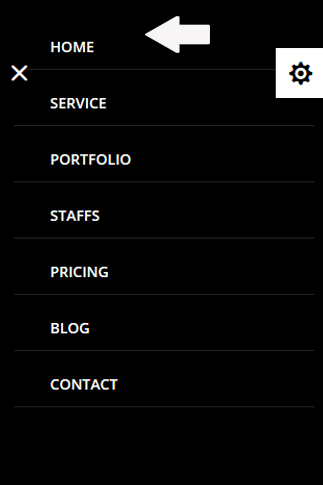
To Change Sticky Mobile Menu Background Color Go to Dashboard Divi > Theme Options > DCT Options > Mobile Menu > Sticky Mobile Menu Background Color

To Disabled/Enabled Sticky Mobile Menu Go to Dashboard Divi > Theme Options > DCT Options > Mobile Menu > Sticky Mobile Menu
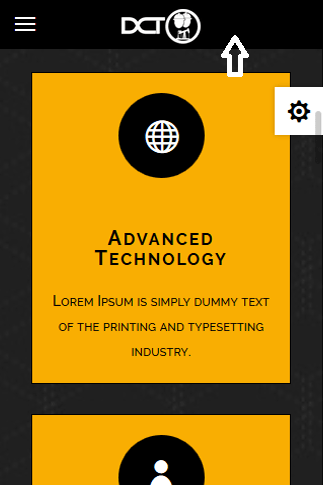
Watch More Mobile Menu option :
4) Blog
The DCT theme option allow you to select the settings of Blog
In Blog Option included :
- Custom Blog Options
- Blog Page Header Image
- Header Overlay Color
- Background Position
- Background Size
- Blog Title Background Color
- Blog Title Text Color
To Disabled/Enabled Custom Blog Options Go to Dashboard Divi > Theme Options > DCT Options > Blog > Custom Blog Options
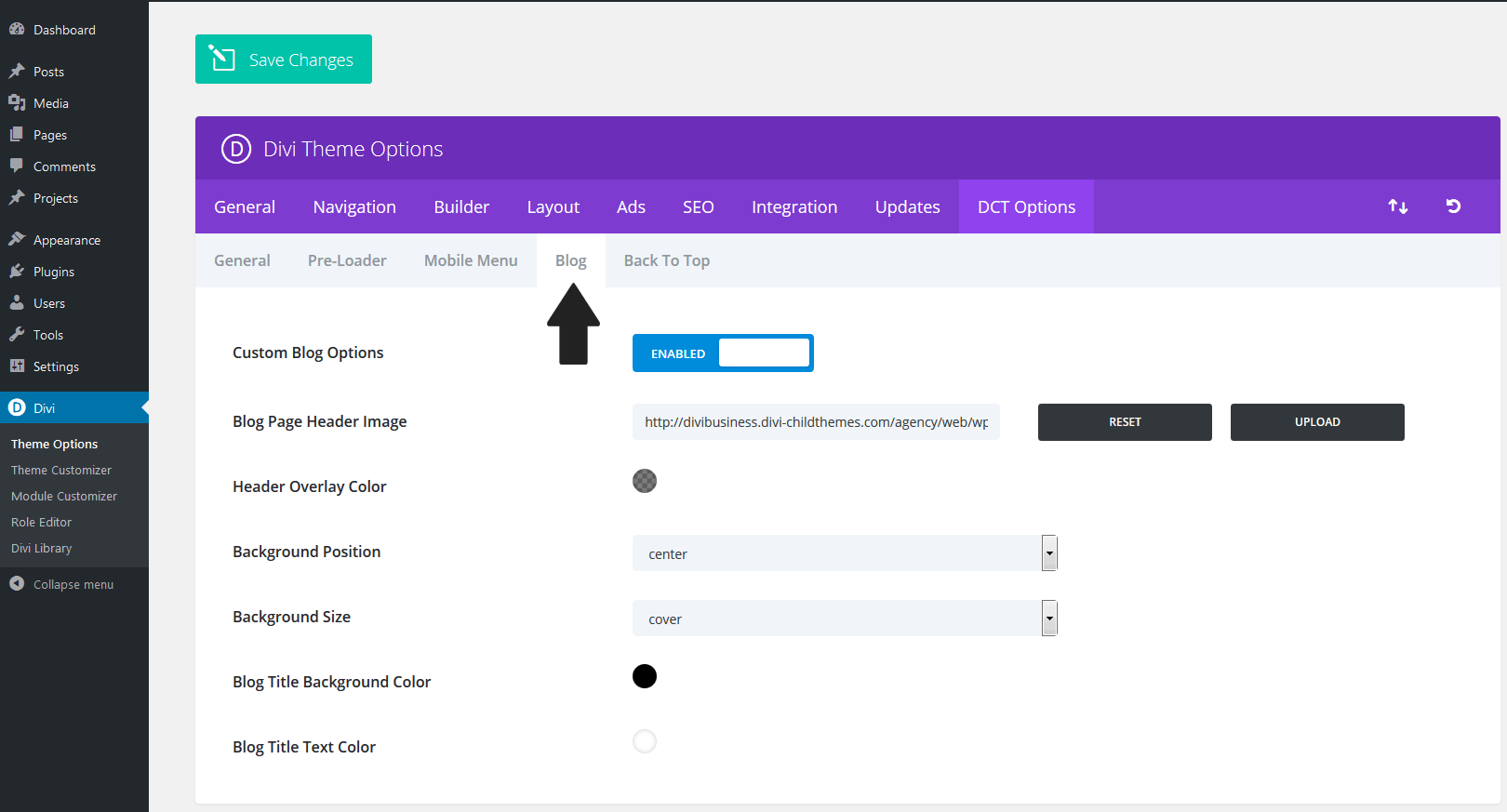
To Change Blog Page Header Image Go to Dashboard Divi > Theme Options > DCT Options > Blog > Blog Page Header Image
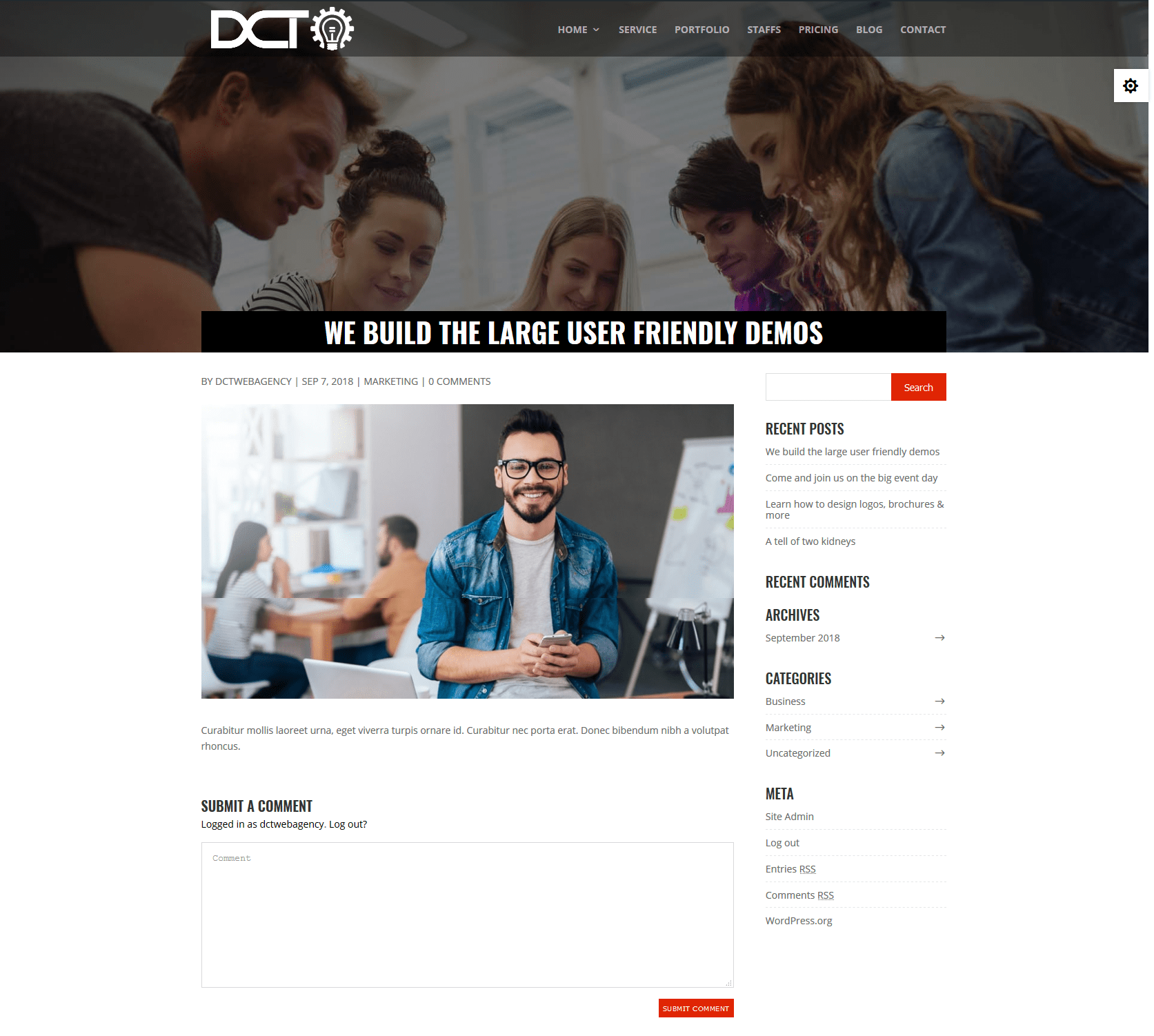
To Change Header Overlay Color Go to Dashboard Divi > Theme Options > DCT Options > Blog > Header Overlay Color
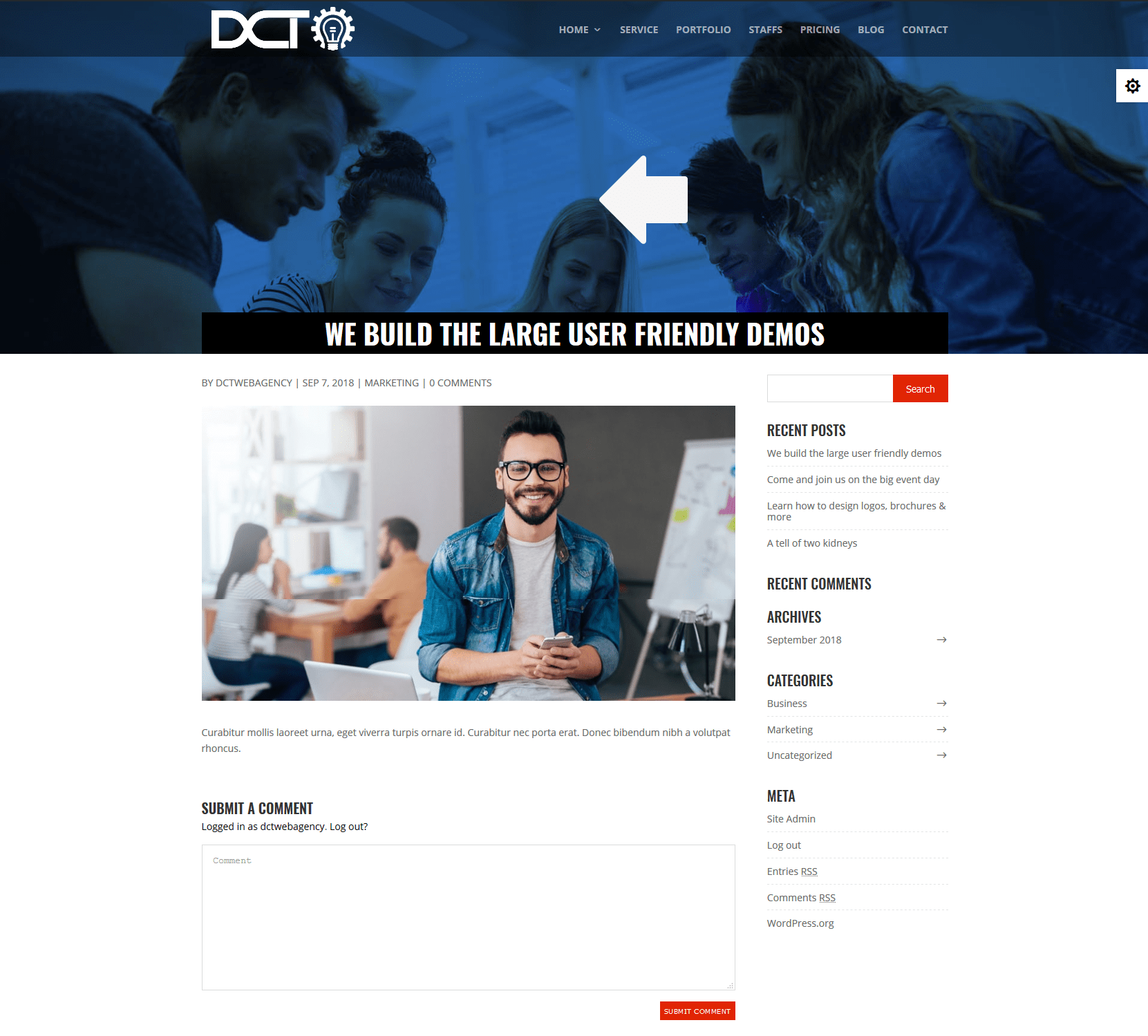
To Change Background Position Go to Dashboard Divi > Theme Options > DCT Options > Blog > Background Position
To Change Background Size Go to Dashboard Divi > Theme Options > DCT Options > Blog > Background Size
To Change Blog Title Background Color Go to Dashboard Divi > Theme Options > DCT Options > Blog > Blog Title Background Color
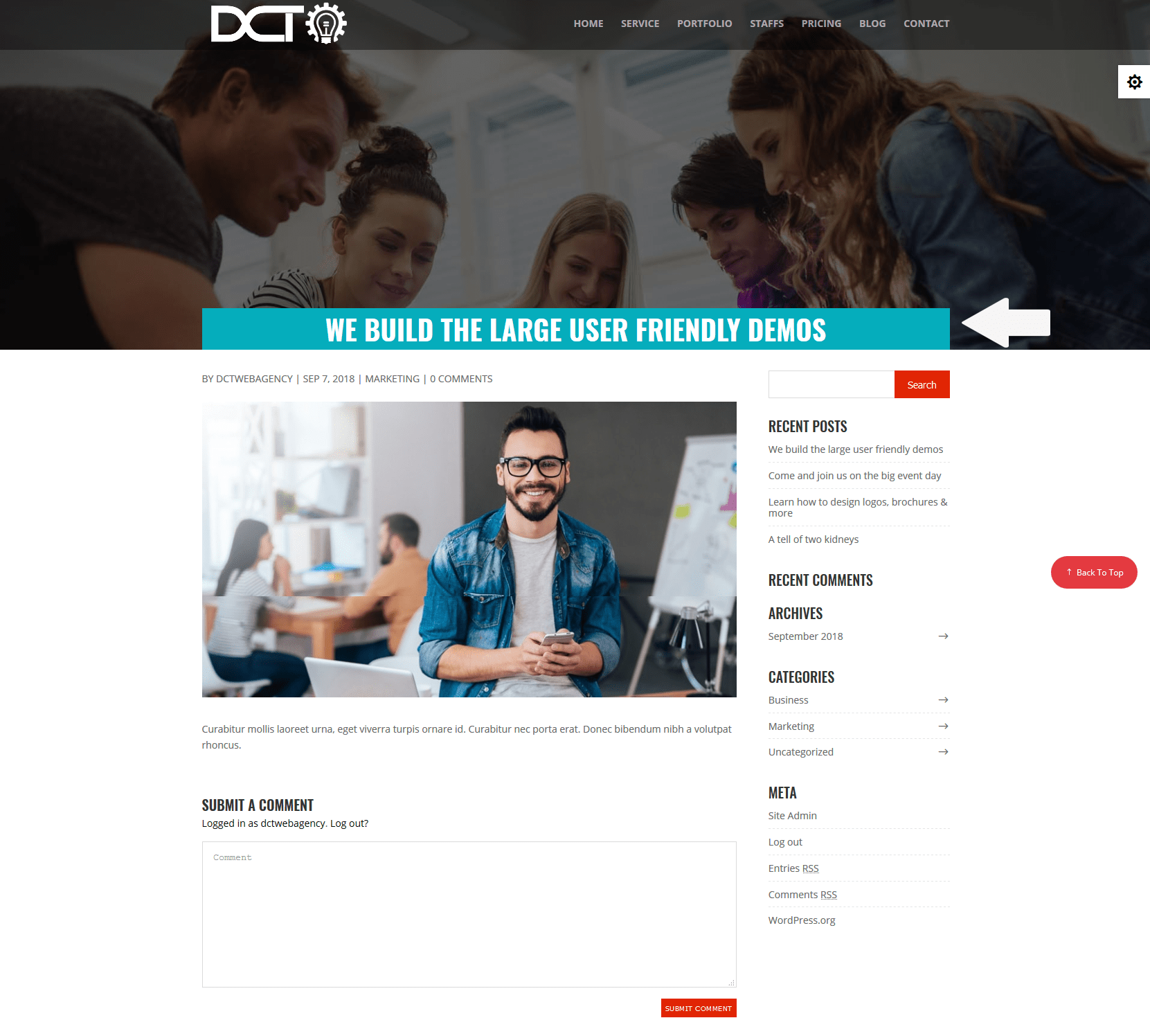
To Change Blog Title Text Color Go to Dashboard Divi > Theme Options > DCT Options > Blog > Blog Title Text Color
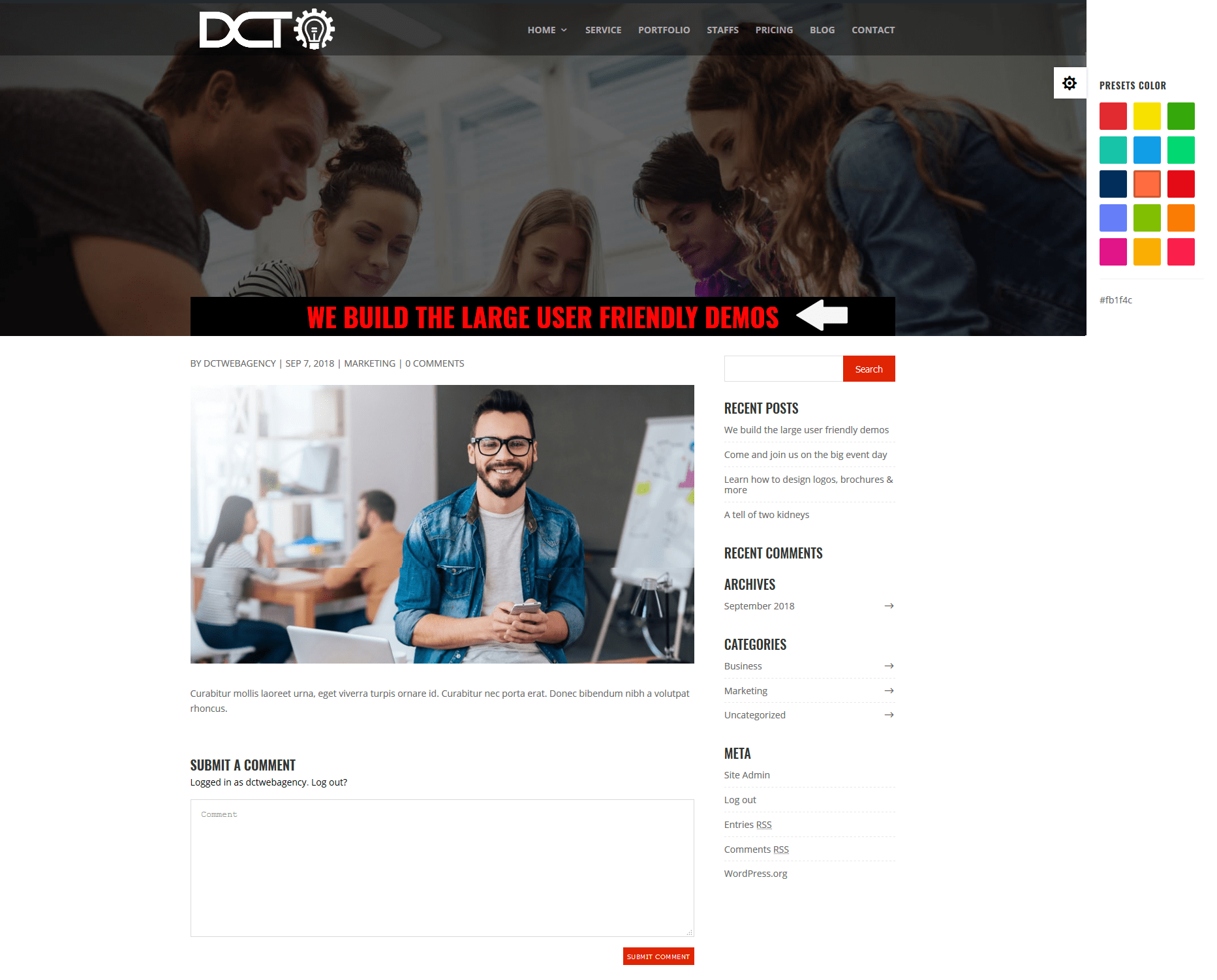
Watch More Blog option :
5) Back To Top
The DCT theme option allow you to select the settings of Back To Top
In Back To Top Option included :
- Custom Back To Top Option
- Back To Top Text
- Back To Top Text Color
- Background Color
- Background Hover Color
- Border Color
- On Hover Box Shadow Color
To Disabled/Enabled Custom Back To Top Option Go to Dashboard Divi > Theme Options > Back To Top > Blog > Custom Blog Options
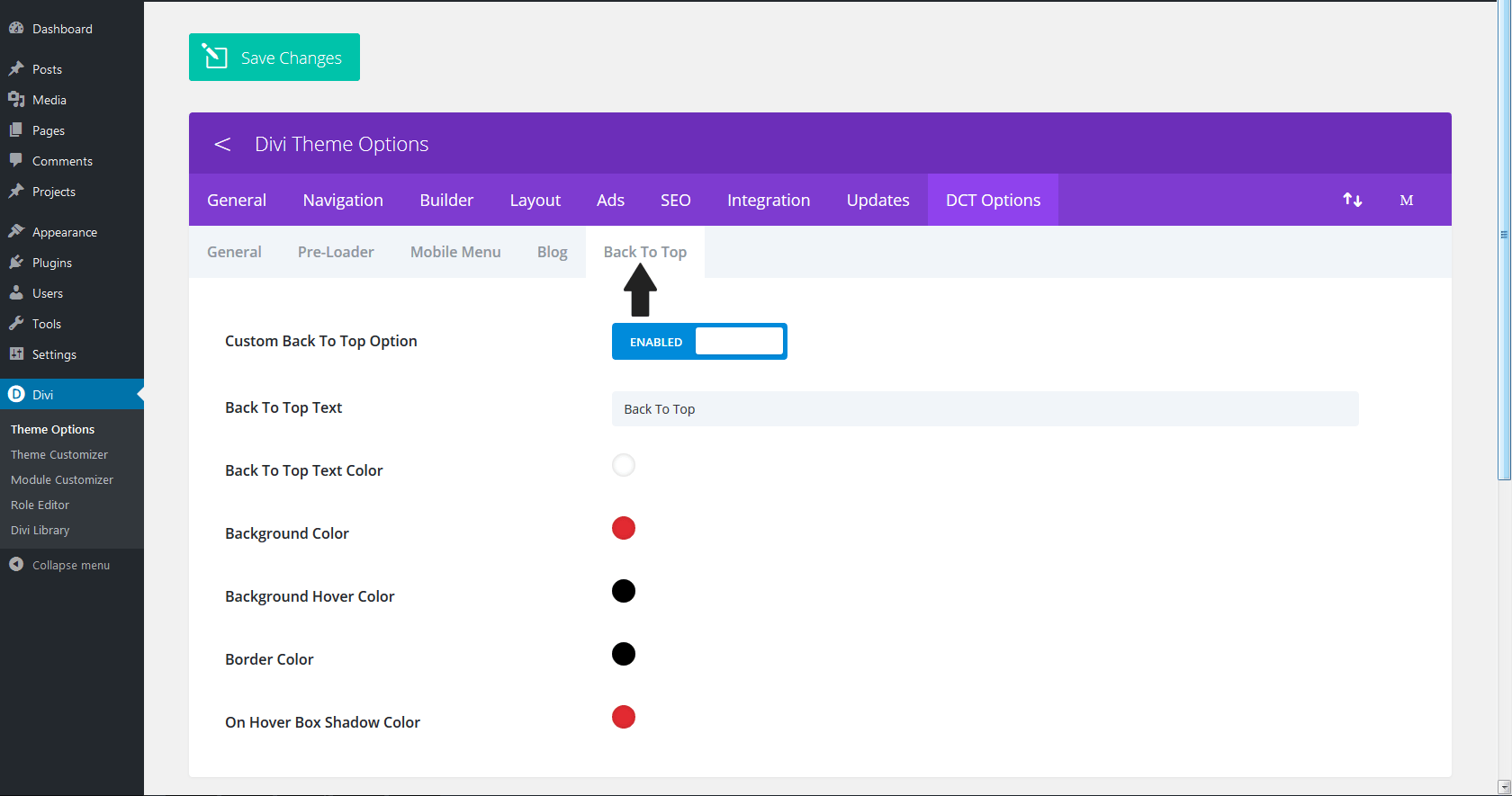
To Change Back To Top Text Go to Dashboard Divi > Theme Options > DCT Options > Back To Top > Back To Top Text
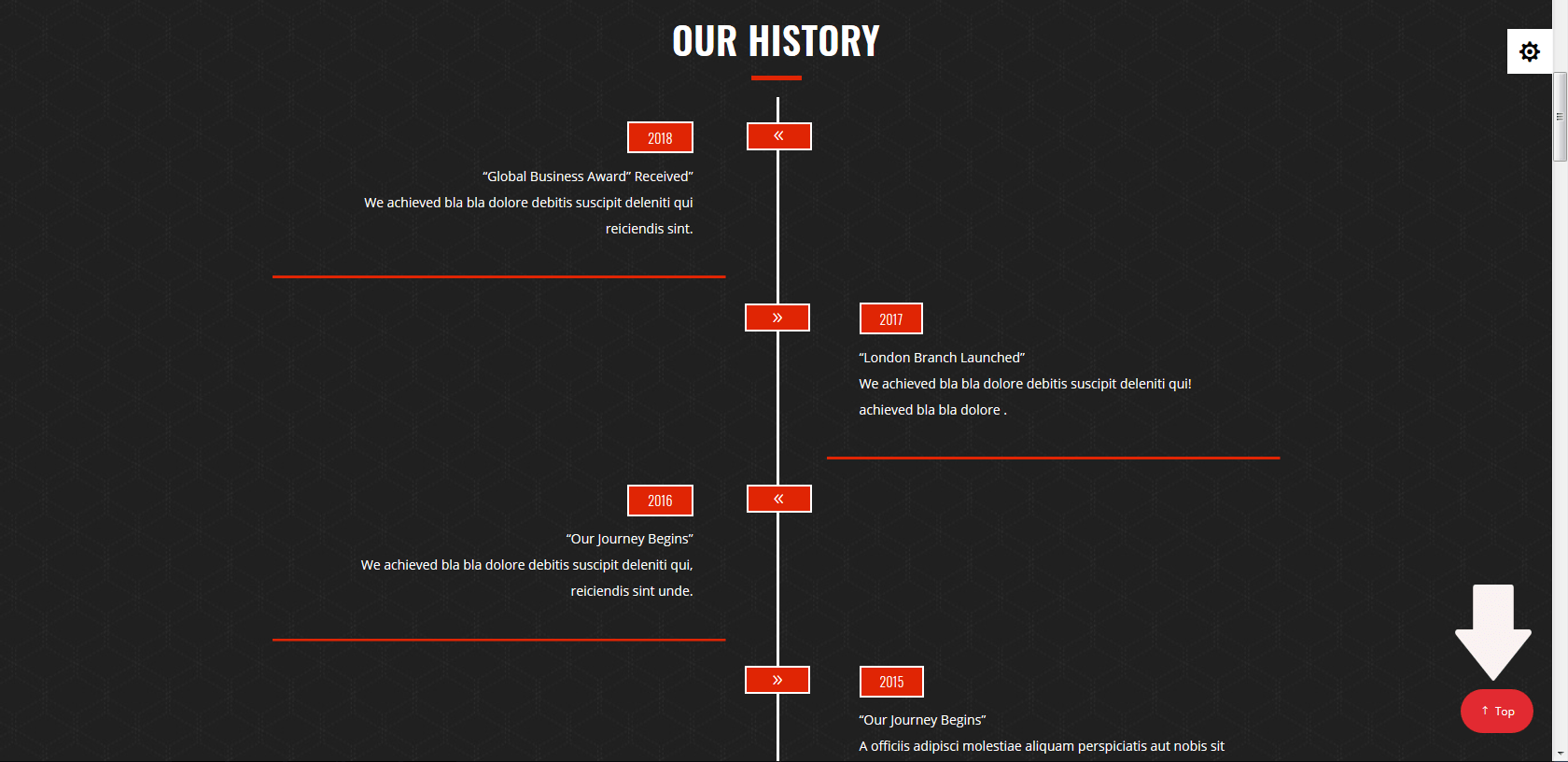
To Change Back To Top Text Color Go to Dashboard Divi > Theme Options > DCT Options > Back To Top > Back To Top Text Color
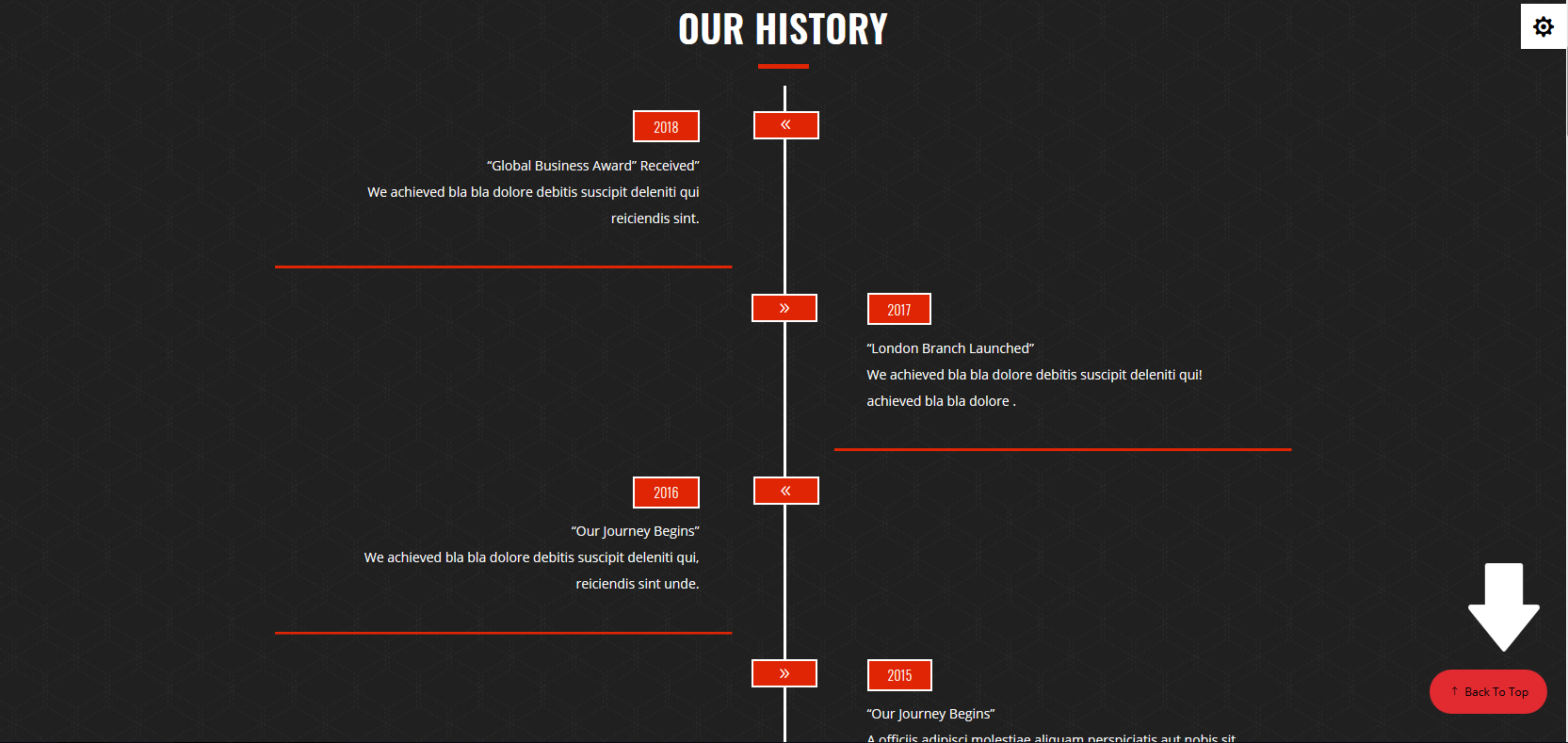
To Change Background Color Go to Dashboard Divi > Theme Options > DCT Options > Back To Top > Background Color
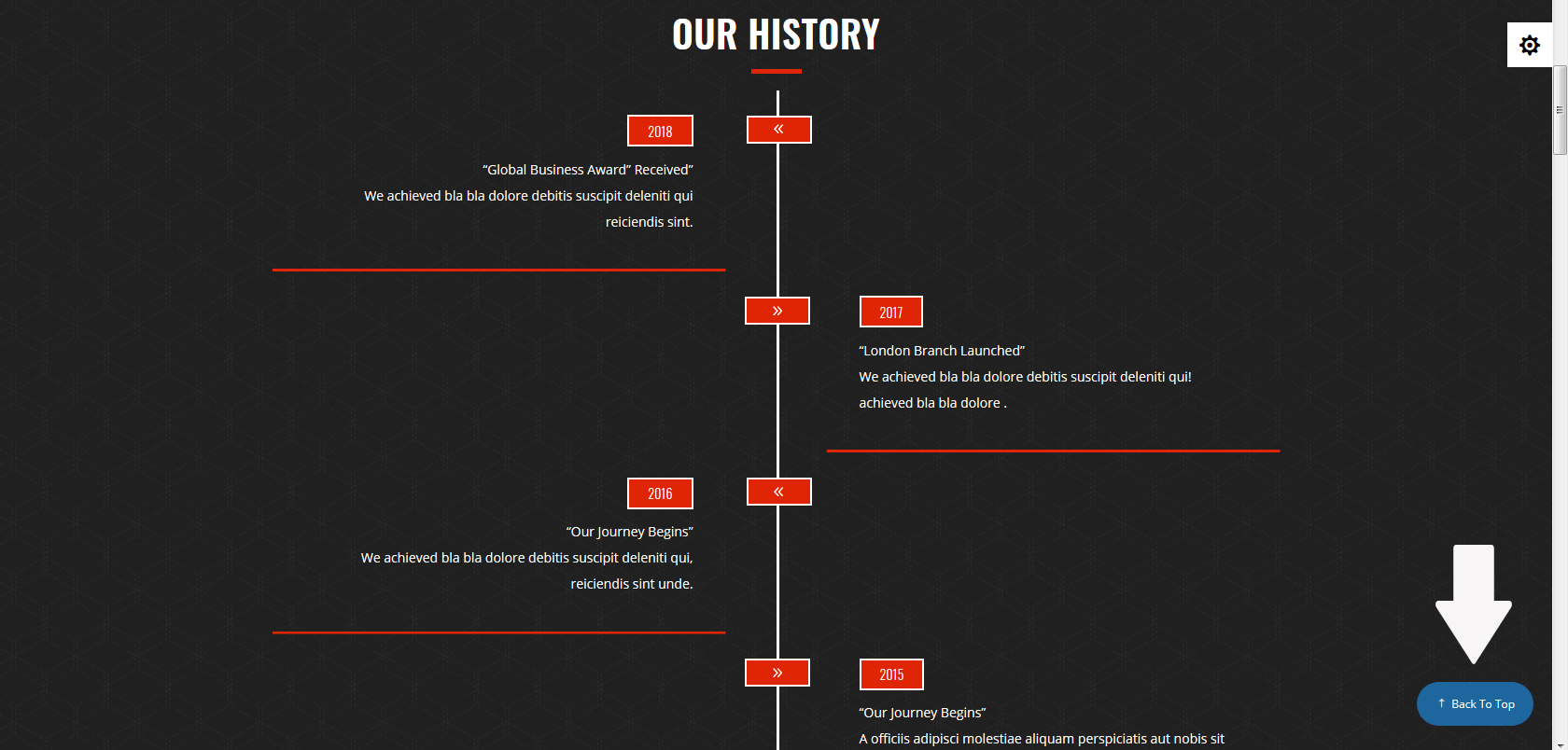
To Change Background Hover Color Go to Dashboard Divi > Theme Options > DCT Options > Back To Top > Background Hover Color
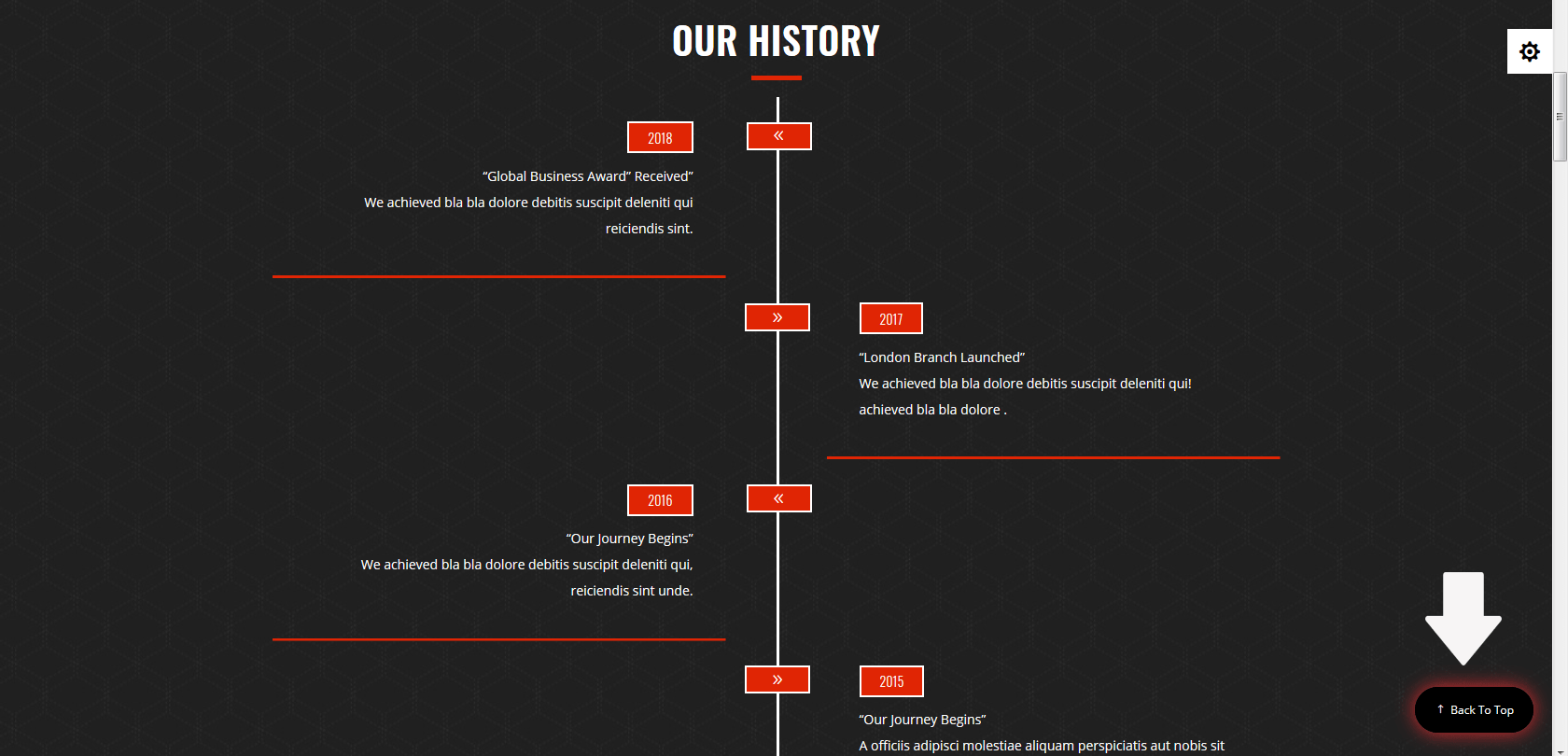
To Change On Hover Box Shadow Color Go to Dashboard Divi > Theme Options > DCT Options > Back To Top > On Hover Box Shadow Color
Watch More Back To Top option :
6) 404-Page
The DCT theme option allow you to select the settings of 404-Page
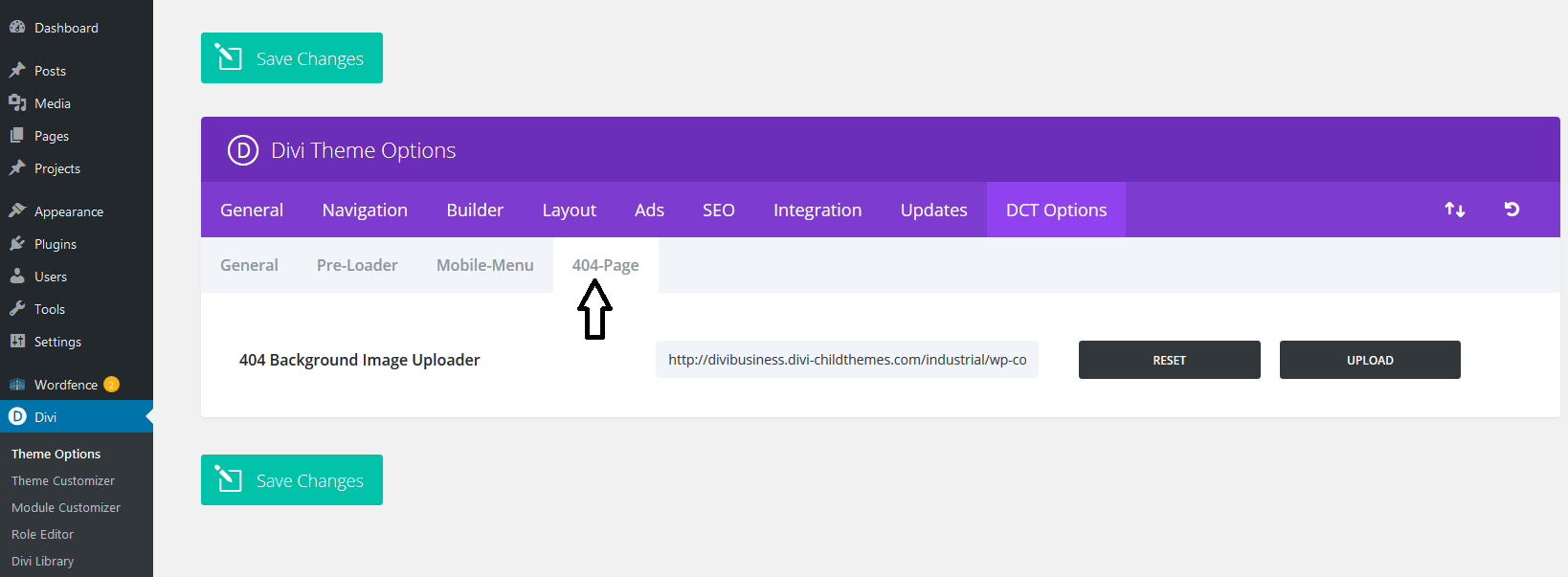
To Change 404 page background image, Go to Dashboard Theme Options > DCT Options > 404-Page > 404 Background Image Uploader